Integrate using the mobile SDKs (Android and iOS)
The aim of this topic is to help a developer integrating with the Assure API using ReadID's mobile SDKs. ReadID does not provide a web SDK since it requires using the NFC technology of a mobile phone via a native mobile app.
Please, keep in mind that the following descriptions do not contain all the necessary steps for production mode. In addition, you must add validations, tests and error handling, which is outside the scope of this documentation.
Using the ReadID SDKs helps you set up the user interface that the end-user sees when performing the identity verification on their mobile or desktop.
The main aim of ReadID's user interface is to check the end-user's ID document.
Before you start the SDK integration, we recommend to familiarise yourself with the general steps for integrating with the Assure API.
Requirements
Before you start the SDK integration, you should be aware of the following requirements for ReadID's SDKs:
- Always use the latest ReadID SDK version.
SDK version
You should keep your app up to date by using the latest ReadID SDK version. Since ReadID's SDKs are not publicly available, you need to contact us by creating a support ticket in the Signicat Dashboard.
- Ensure you implement for ReadID's supported device versions (iOS/Android). To get this information, you can contact us by creating a support ticket in the Signicat Dashboard.
- The mobile device must have NFC support.
- The app needs camera permission. Access to a microphone is not a requirement.
- Your app must always communicate with your own server and never directly with the Assure API (see Usage recommendations).
- Since you are integrating with the Assure API in a native app context, you should choose the eIDV generic flow.
Integration steps overview
This diagram provides an abstraction of the client-side implementation.
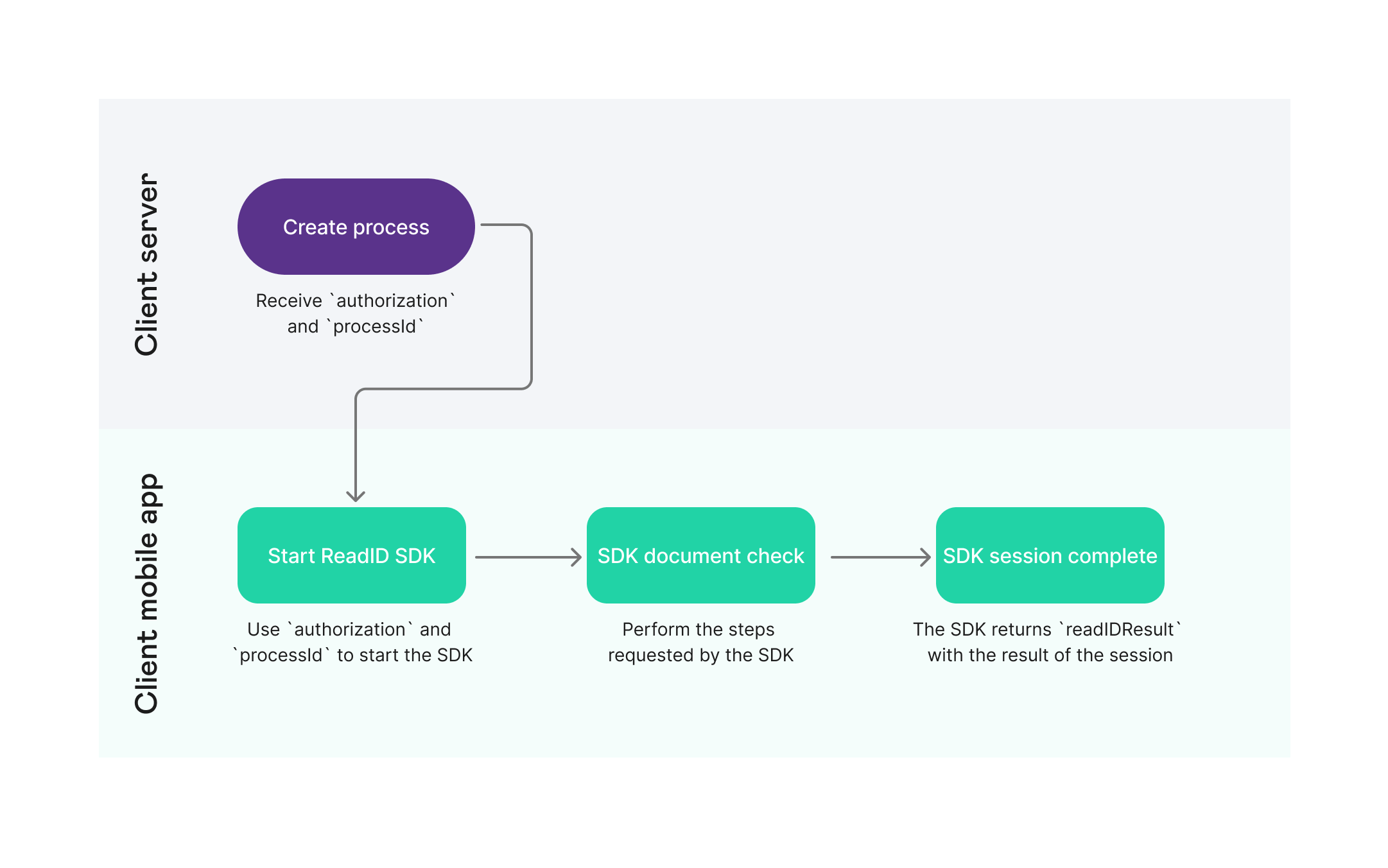
ReadID SDK process diagram
The next sections describe all the needed steps, including the integration with Assure before and after the ReadID SDK integration in step 3:
- Create a dossier.
- Create a process.
- Integrate with the ReadID mobile SDK to check the ID document.
- Get the result.
All the steps are similar for iOS and Android except the SDK integration in step 3, which is described below for iOS and Android.
Create a dossier
Use the Create dossier endpoint to create a placeholder for all of your end-user's data:
curl -X POST \
  <ENVIRONMENT>/assure/dossiers \
  -H 'Accept: application/json' \
  -H 'Authorization: Bearer eyJh ... QifQ.eyJ ... hIOw' \
  -H 'Content-Type: application/json' \
Save the dossierId from the response body to use in the next requests.
Ensure you use one dossier per end-user.
After creating a dossier, you can see all of its contents anytime you want to. To do that, use the Get dossier endpoint giving it the dossierId.
Create a process
Use the Create process endpoint to create an identity verification process inside the dossier.
Ensure you use the dossierId from the "Create dossier" response.
- Set the
providertoreadid.
curl -X POST \
  <ENVIRONMENT>/assure/dossiers/<DOSSIER_ID>/processes \
  -H 'Authorization: Bearer eyJh ... QifQ.eyJ ... hIOw' \
  -H 'Accept: application/json' \
  -H 'Content-Type: application/json' \
  -d '{
     "provider": "readid",
     "processType": "sdk"
   }'
When you have created the ReadID process, you should get a backend response like this:
{
  "processId": "7c0a2a82-0aac-49d7-a118-7e14e46a143f",
  "status": "pending",
  "createdAt": "2021-01-11T10:29:17Z",
  "updatedAt": "2021-01-11T10:29:17Z",
  "authorization": "someAuthorizationString",
  "providerApiUrl": "someProviderApiUrl",
  "provider": "readid",
  "processType": "sdk"
}
Save the information from the response. You will need it in the next SDK integration steps.
Integrate with the ReadID mobile SDK to check the ID document
To check the ID document of the end-user, you must now integrate with the ReadID SDK for either Android or iOS:
Android
Initialise and run the SDK (Java code example)
You must the send the processId, authorization and the providerApiUrl fields from the backend response to the app.
     final NFCWithAccessControlFlow nfcWithAccessControlFlow = new
                NFCWithAccessControlFlow();
        nfcWithAccessControlFlow.setBaseURL(<providerApiUrl>);
        nfcWithAccessControlFlow.setOAuthToken(<authorization>);
        nfcWithAccessControlFlow.setOpaqueID(<processId>);
        try {
            ActivityResultLauncher<Intent> readidResultLauncher = registerForActivityResult(
                    new ActivityResultContracts.StartActivityForResult(), result -> {
                        if (result.getResultCode() == Activity.RESULT_OK) {
                            //Handle the result
                            //If there is the need to use the portrait picture that's inside the chip to send to Assure-API
                            //the following code will grab the picture from the NFCResult
                            final NFCResult nfcResult = ReadIDUI.getResult(NFCResult.class, result.getData());
                            if (nfcResult != null) {
                                final Bitmap documentImage = nfcResult.getFaceImage();
                                final ByteArrayOutputStream byteArrayOutputStream = new ByteArrayOutputStream();
                                if(documentImage != null) {
                                    documentImage.compress(Bitmap.CompressFormat.JPEG, 90, byteArrayOutputStream);
                                    final byte[] byteArray = byteArrayOutputStream.toByteArray();
                                    final String base64Selfie = new String(Base64.encode(byteArray, Base64.NO_WRAP));
                                    //base64Selfie can be sent to Assure-API for face comparison
                                }
                            }
                        }
                        ReadIDUI.clearAllData();
                    });
            final Intent readIDIntent = ReadIDUI.createIntent(this, nfcWithAccessControlFlow);
            readidResultLauncher.launch(readIDIntent);
        } catch (final NFCNotSupportedException e) {
            //Handle unsupported devices
        }
iOS
- Download the latest ReadID iOS SDK version. To get help with this, you can contact us by creating a support ticket in the Signicat Dashboard.
Recommendation
Also, we recommend you use the latest Xcode version.
- Drag and drop the two Swift frameworks ReadID_UI.xcframework and the ReadID.xcframework into your project. Make sure to select the Copy items if needed checkbox. Note: The download Zip file also includes Framework, but we recommend using XCFramework.
- In the General configuration tab of your App Target configuration, set ReadID.xframework and ReadID_UI.xframework to Embed & Sign.

ReadID SDK download
- In the Signing & Capabilities configuration tab, add the capability Near Field Communication Tag Reading.
- In the app's Info.plist file:
- Add NSCameraUsageDescription and NFCReaderUsageDescription, since the camera is needed to scan the MRZ.
- Add NFCReaderUsageDescription.
- Copy the snippet below into your plist file. This is the list of application identifiers that are supported (see Apple's Core NFC documentation).
<key>com.apple.developer.nfc.readersession.iso7816.select-identifiers</key>
<array>
<string>A0000002471001</string>
<string>A00000045645444C2D3031</string>
</array>
Initialise and run the SDK (Swift code example)
You must the send the processId, authorization and the providerApiUrl fields from the backend response to the app.
import UIKit
import ReadID_UI

class ViewController: UIViewController {

    var failedReason : FailedReason?
    var mrzResult : MRZResult?
    var nfcResult : NFCResult?

    var configuration : Configuration {
        //Create a Configuration object for general ReadIDUI configuration
        var configuration = Configuration()

        configuration.baseUrl = "https://saas-preprod.readid.com:443/odata/v1/ODataServlet/"
        configuration.oauthToken = "someAuthorization_from_the_process"
        configuration.opaqueId = "someProcessID"

        return configuration
    }

    var mrzConfiguration : MRZConfiguration {
        //Create a MRZConfiguration object for specific MRZ configuration
        var mrzConfiguration = MRZConfiguration()

        //Specify document buttons
        mrzConfiguration.documentTypeButtons = [.passport, .idCard, .driversLicense]
        mrzConfiguration.allowedDocumentTypes = [.passport, .idCard, .driversLicense]
        mrzConfiguration.mrzResultMode = .all
        mrzConfiguration.isManualInputEnabled = false

        return mrzConfiguration
    }

    var nfcConfiguration : NFCConfiguration {
        //Create a NFCConfiguration object for specific NFC configuration
        var nfcConfiguration = NFCConfiguration()
        nfcConfiguration.isShowVerificationResultEnabled = true
        nfcConfiguration.documentTypeButtons = [.passport, .idCard, .driversLicense]
        nfcConfiguration.nfcResultMode = .none
        nfcConfiguration.skipButtonAttempts = -1
        return nfcConfiguration
    }

    func showReadIDUIViewController() {
        do {
            try ReadIDUI.identify(from: self,
                                   style: .modal(presentationStyle: .automatic),
                                   configuration: configuration,
                                   mrzConfiguration: mrzConfiguration,
                                   nfcConfiguration: nfcConfiguration){
                [weak self]result, mrzResult, nfcResult in

                ReadIDUI.resourcesConfiguration.customBundle = nil

                // Store to pass in prepareForSegue
                self?.mrzResult = mrzResult
                self?.nfcResult = nfcResult
                self?.failedReason = nil

                switch result {
                case .ok:
                    //Do something with the mrzResult. In our case, pass it to the ResultViewController.
                    self?.performSegue(withIdentifier: "toResults", sender: nil)
                case .failed(let reason):
                    //Something went wrong. Go to ResultViewController.
                    self?.failedReason = reason
                    self?.performSegue(withIdentifier: "toResults", sender: nil)
                case .closed:
                    break
                case .backNavigation:
                    //Do nothing. User clicked or swiped back.
                    break
                @unknown default:
                    fatalError()
                }
            }
        }catch(let error as ReadIDError){
            switch error {
            case .invalidConfiguration(let msg):
                print("Error in configuration: %@", msg)
            case .internalNFCNotSupported:
                print("NFC not supported for this device")
            @unknown default:
                fatalError()
            }
        }catch(let error){
            print("Error creating ReadIDUI ViewController: %@", error.localizedDescription)
        }
    }

}
Get the result
When the verification is finished, you can call the Get process result to get the result of the identity verification.
For result examples, see ReadID results.
You can also get a zip file with the packaged process by calling the Download full result endpoint.