About PictureID
Signicat PictureID is Signicat's own eIDV service for secure online customer onboarding. This service enables you to verify your user identity through an identity document check and a likeness verification.
Supported features
PictureID supports the following features:
- ID document check
- Face match between ID document and selfie
The PictureID service is available as a provider in the Assure API.
User flow
With the PictureID service, your end-users can identify themselves by taking a photo of their ID document and a selfie. Once the image data is analysed and approved, they can access your service.
- The selfie step is optional. You can either request a photo of the ID document only, or both the ID document and a selfie.
- Your users can choose either a mobile or desktop to identify themselves. However, a mobile device is recommended, since it gives a better user experience when capturing images of the ID document. The screens for both mobile device and desktop are similar in content.
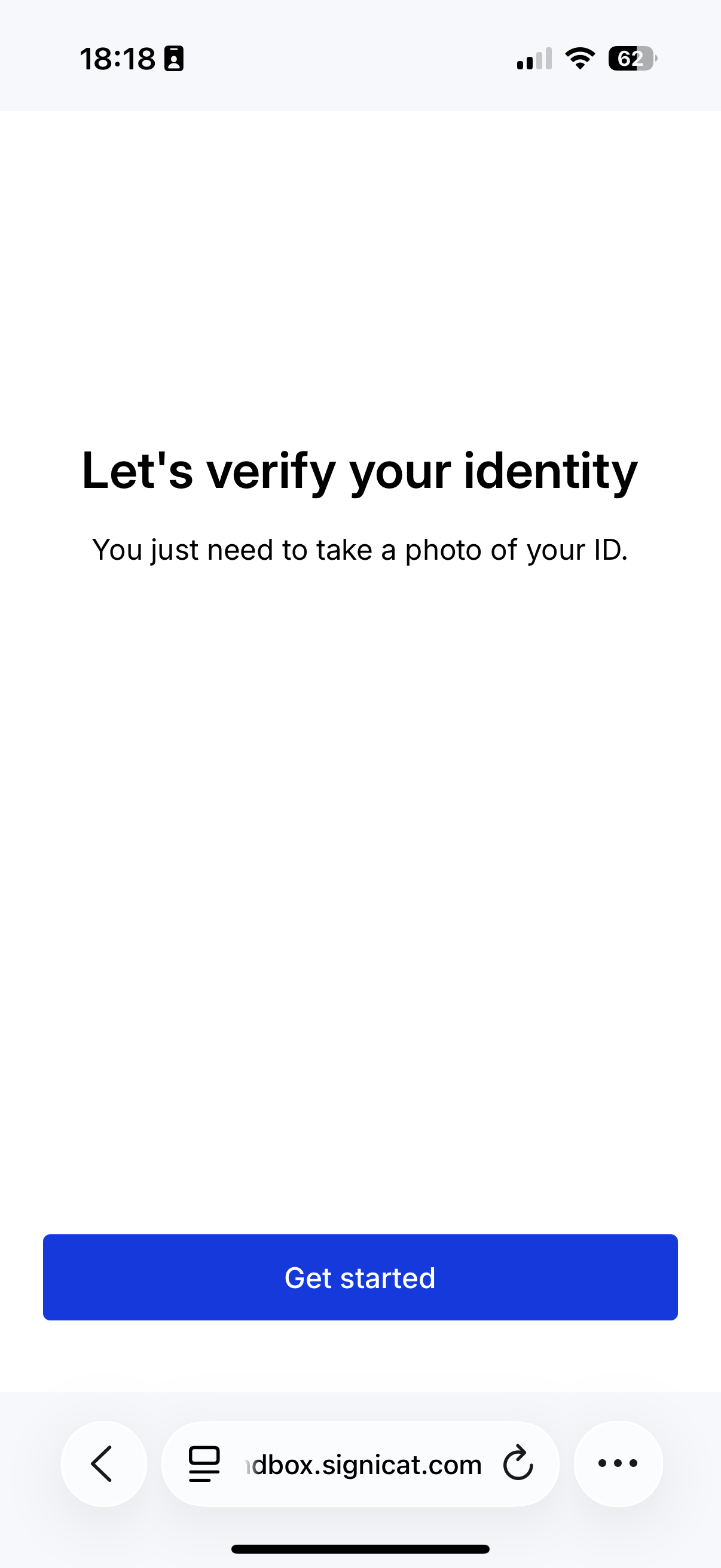
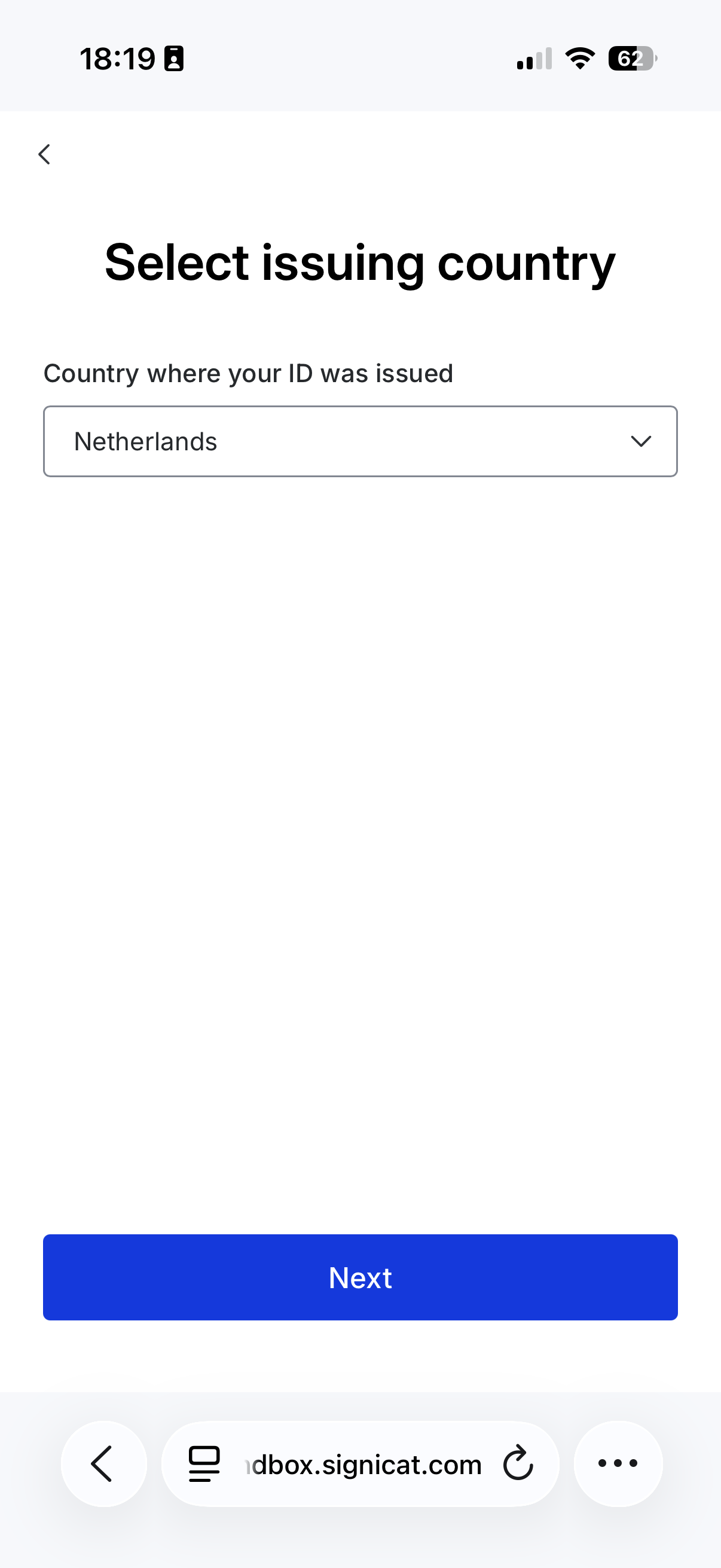
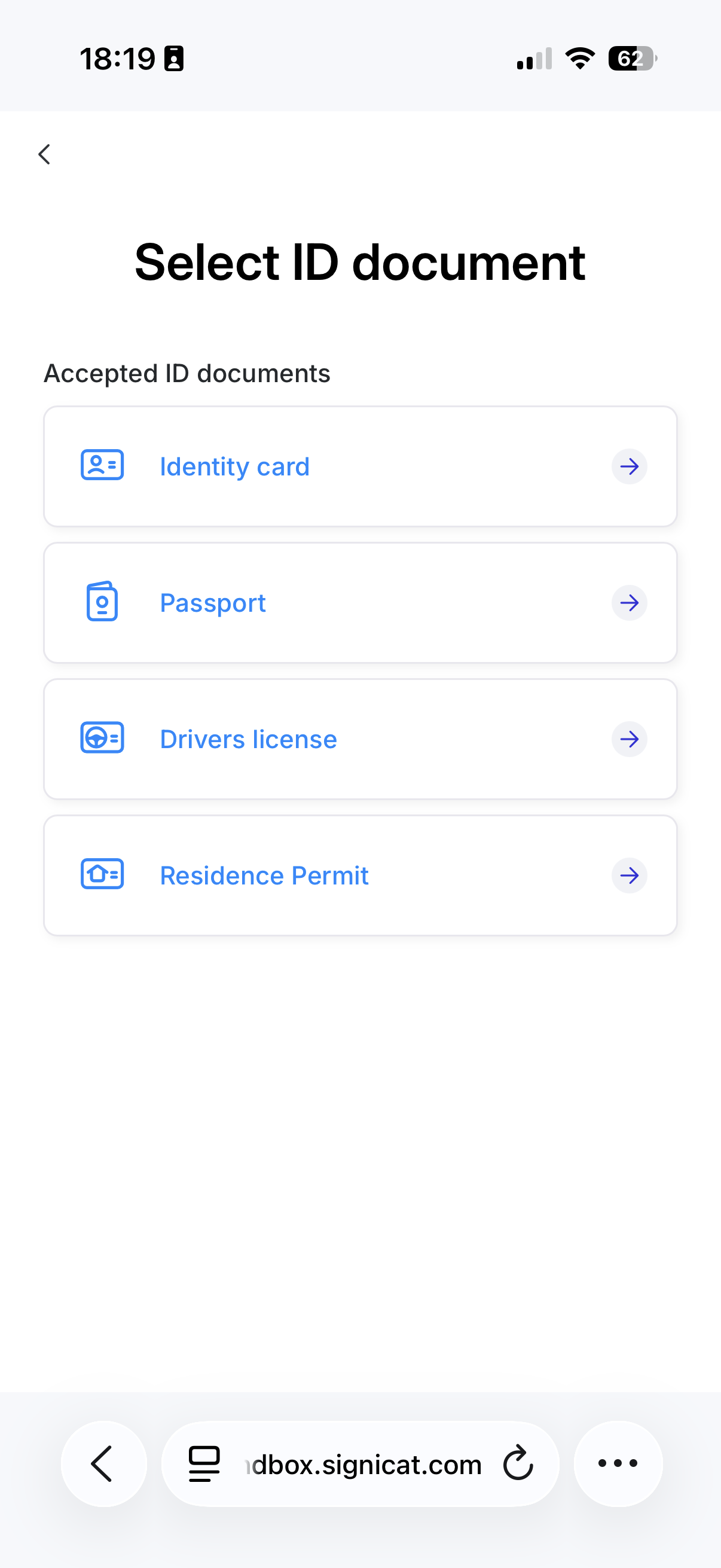
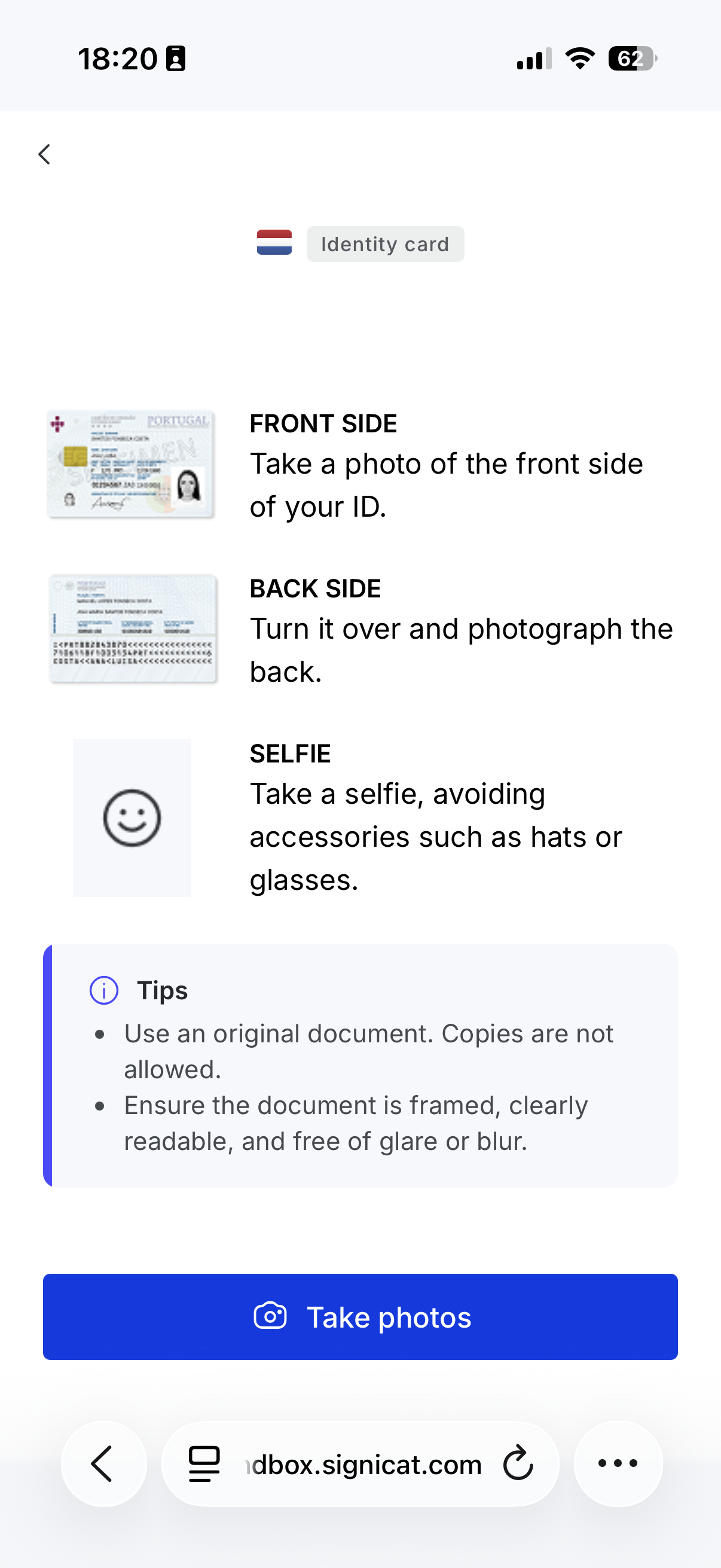
With a default configuration, the end-user goes through the following steps when using a mobile device:
- Welcome: Let's verify your identity.
- Select the issuing country for the ID document.
- Select the ID document type (passport, identity card, driving licence, residence permit).
- Read the photo instruction screen. See also some user experience tips in the below section.
- Insert the photo page of the ID document inside the frame and take a photo.
- Check the quality of the photo page image and submit it.
- If the ID document has a backside, the end-user is asked to take a photo of the backside as well.
- Check the quality of the back side image and submit it.
- Place the face inside the frame and take a selfie (if you require this).
- Check the quality of the selfie image and submit it.
- Success: Identification is completed.
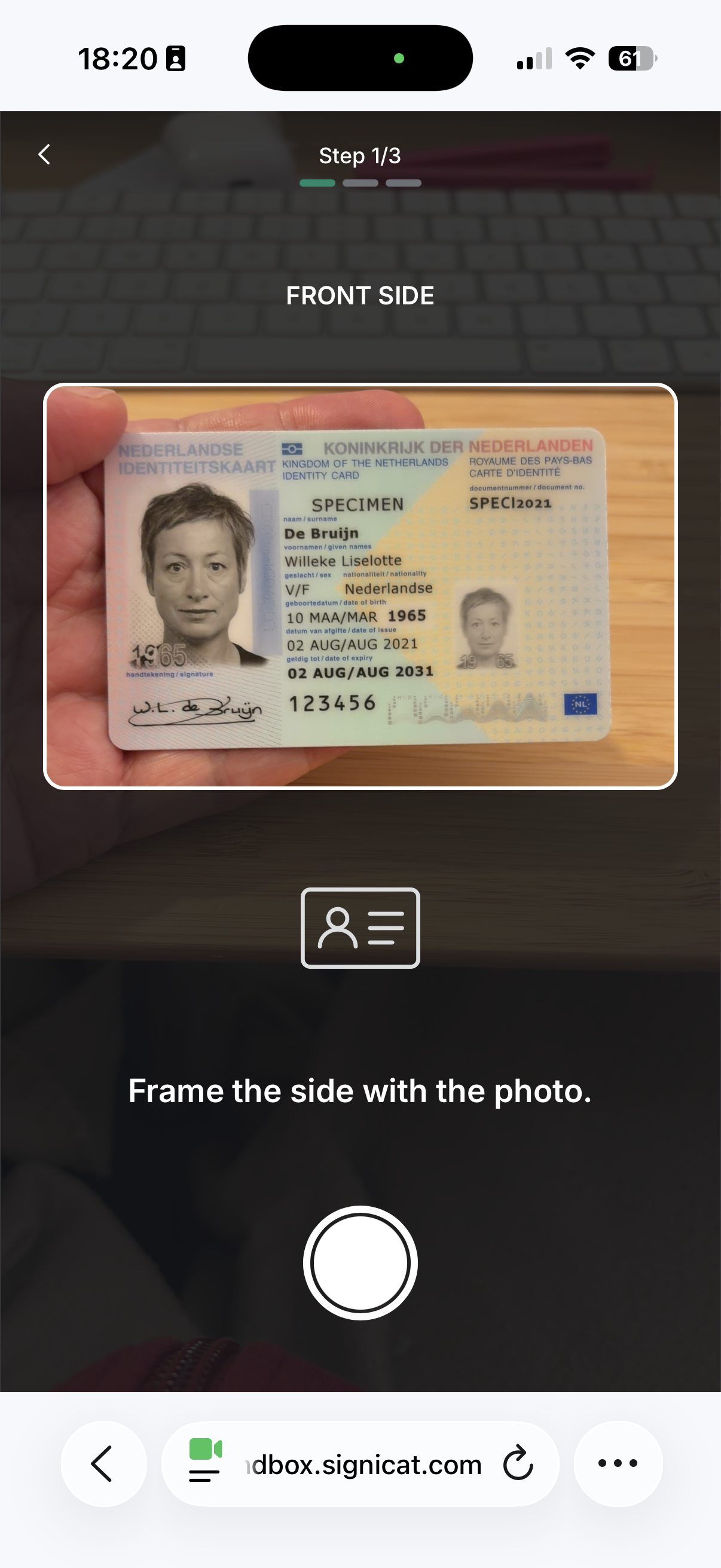
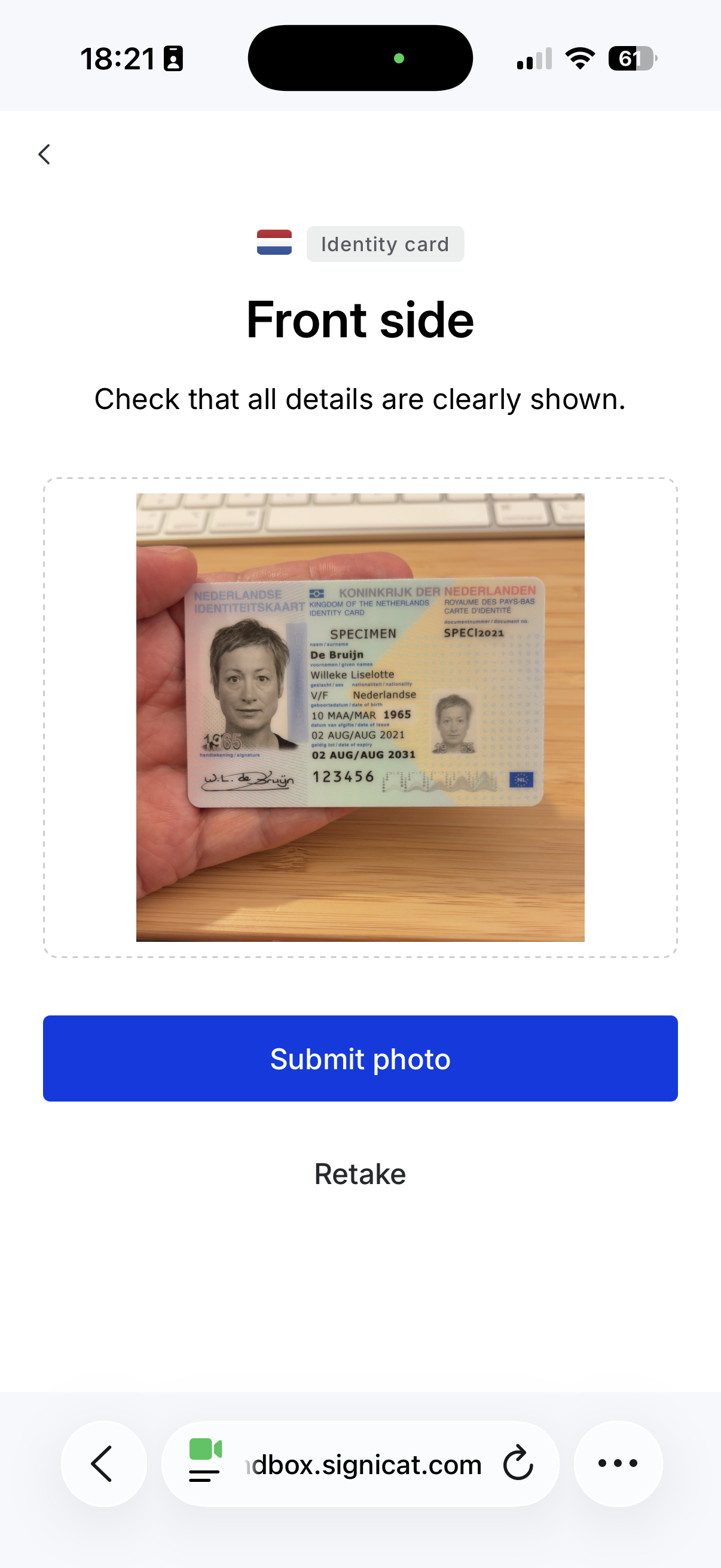
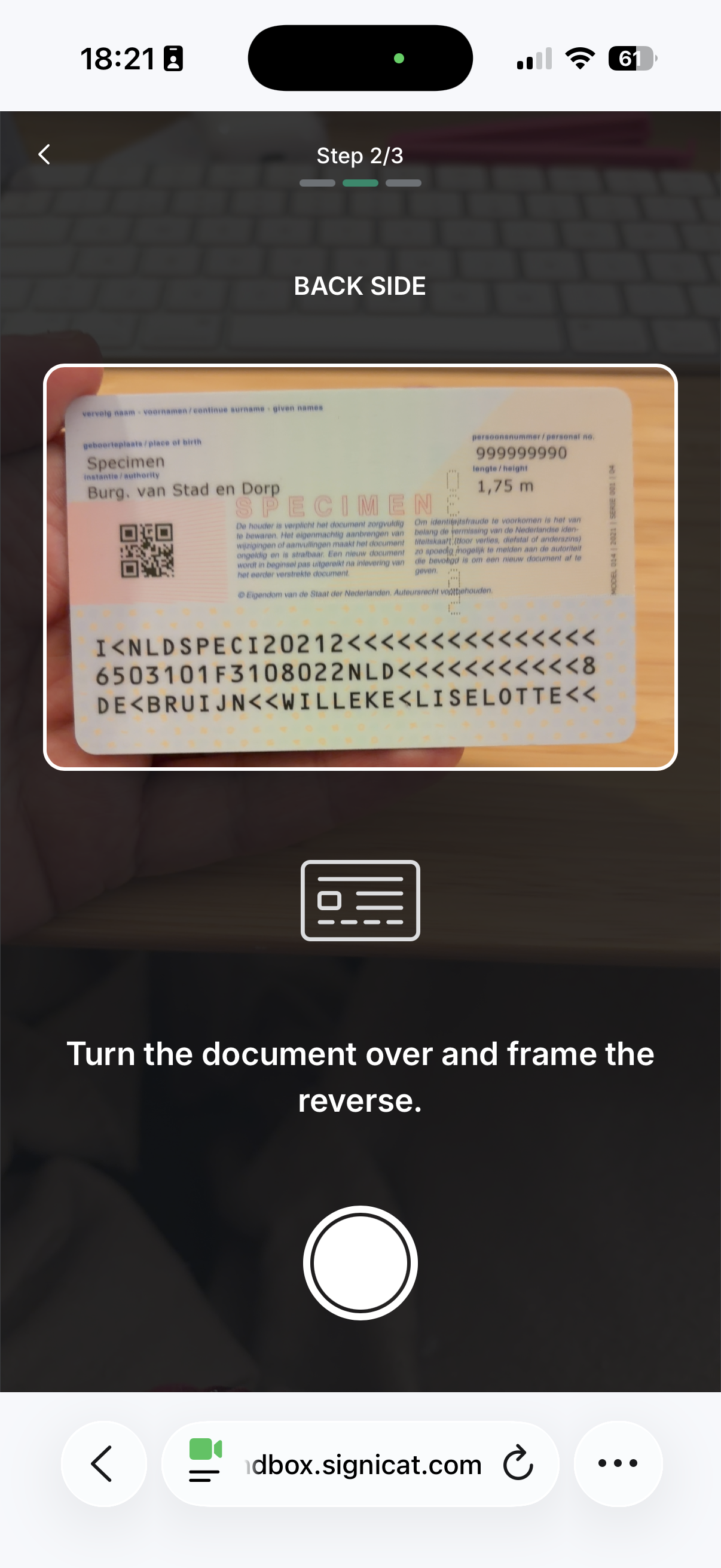
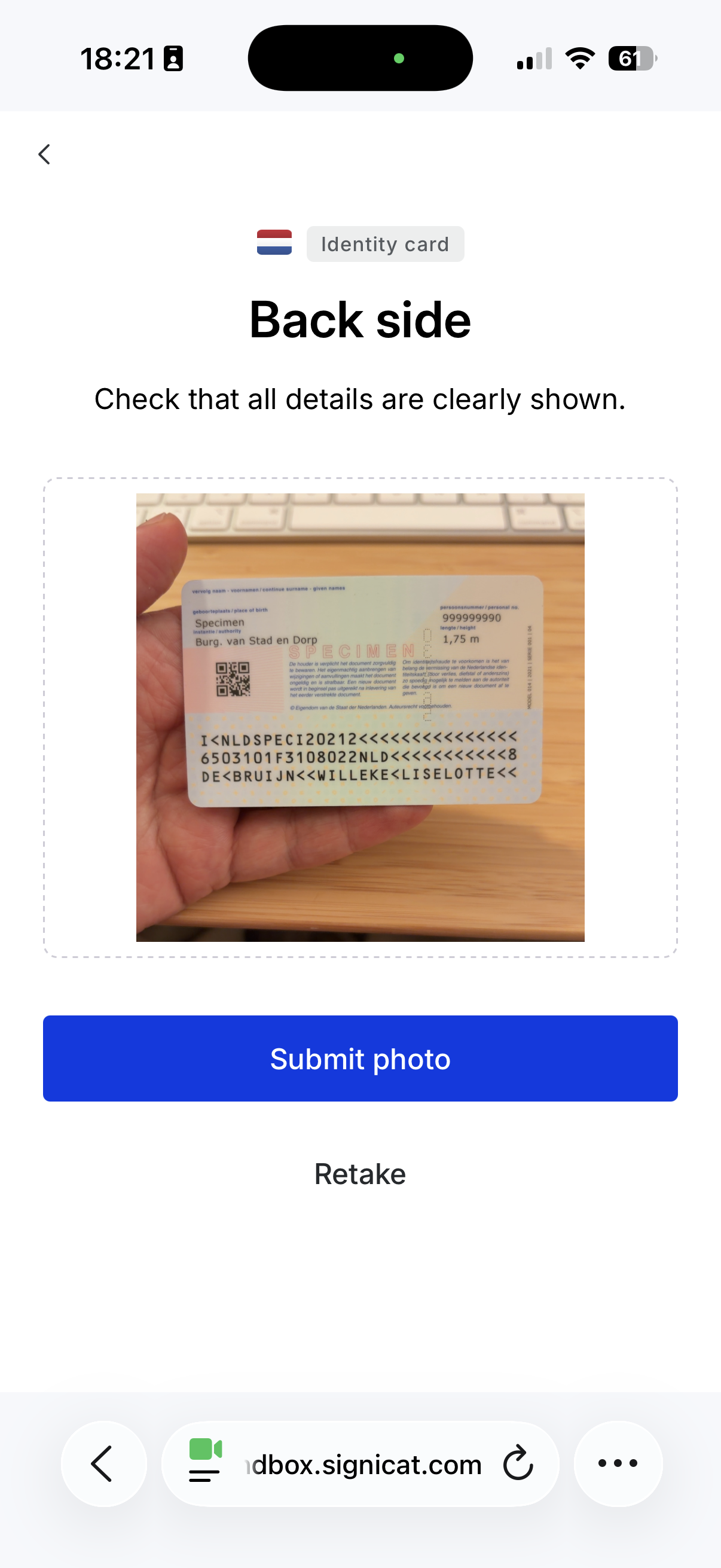
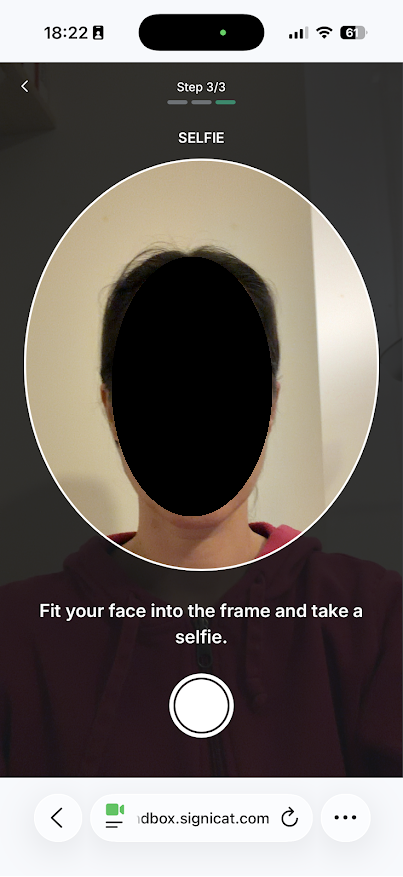
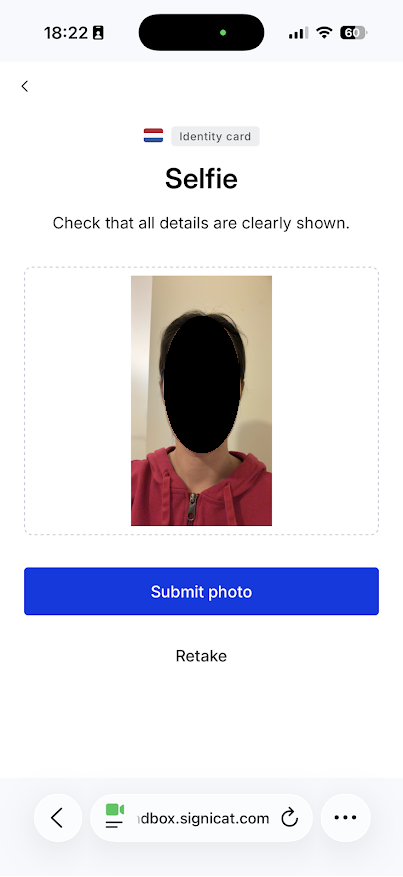
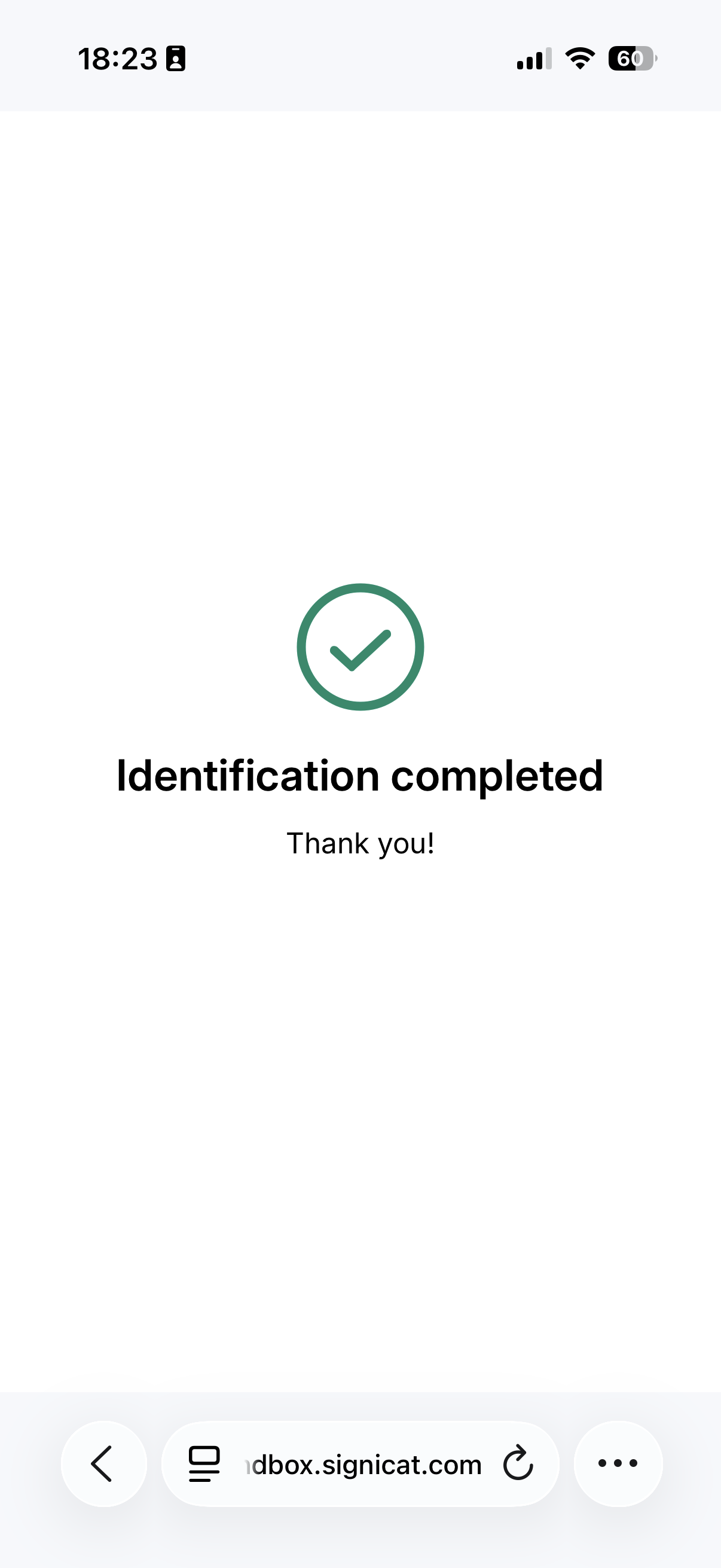
User experience tips to improve the onboarding
Consider to include the following tips in the photo instructions screen (see step 4 in the above section). They should have the following ready:
- Their identity document.
- Their mobile phone. It is recommended to switch from desktop to mobile to ensure better image quality and a smoother user experience.
- A stable and good internet connection.
- Good lighting to capture the images.
- Allow camera and microphone access.
Photo instructions
PictureID requires the user to capture the entire document page and gives the following instructions in the photo instructions screen: "Ensure the document is framed, clearly readable, and free of glare or blur".
Recommended
Here are some examples of good photos, where the edges and some surroundings are shown (photo page and back page of a Dutch passport):
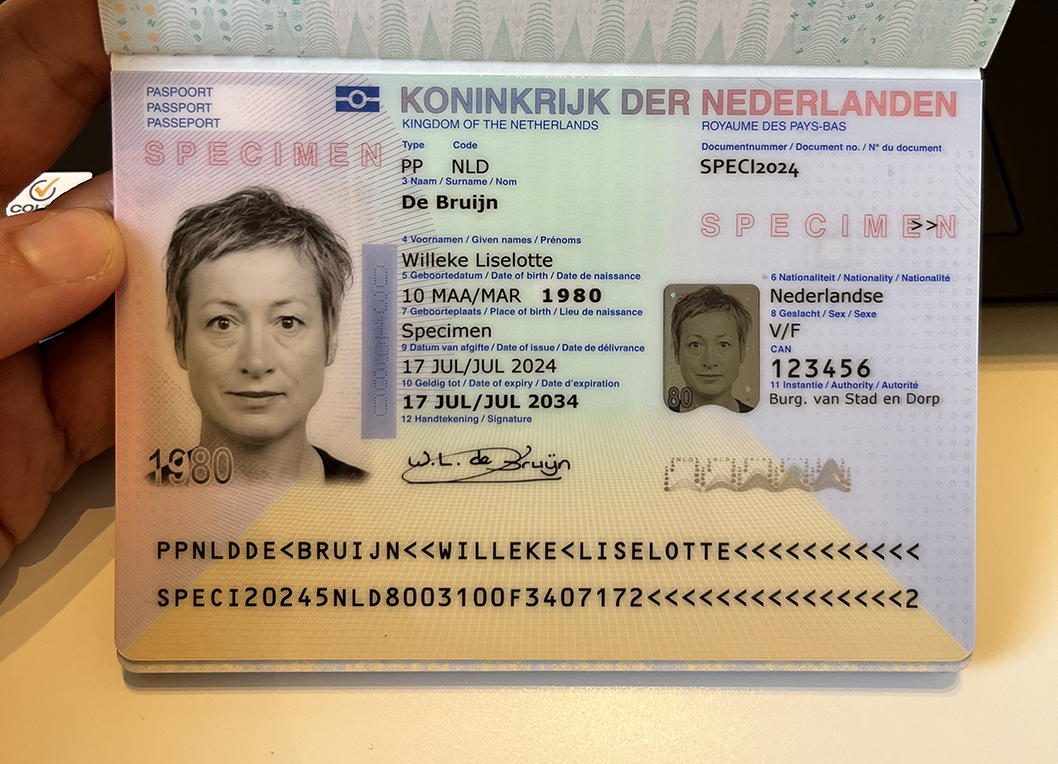
OK: Shows the whole passport photo page with edges and some surroundings
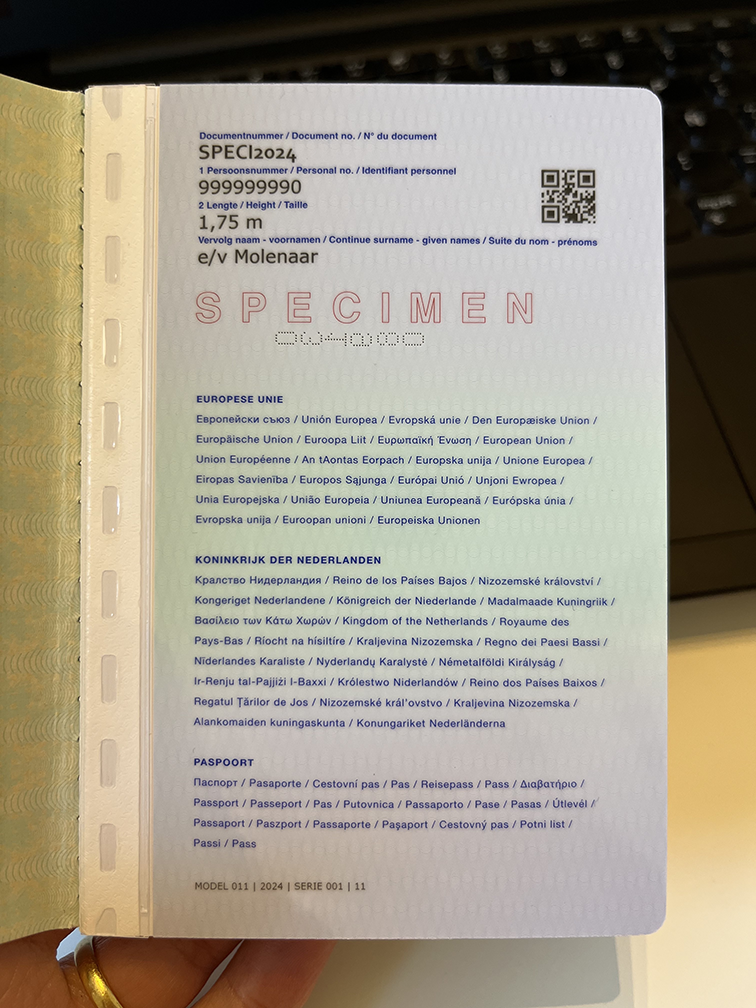
OK: Shows the whole passport back page with edges and some surroundings
Not recommended
However, the following images will not work well with PictureID, since they are cropped too much:
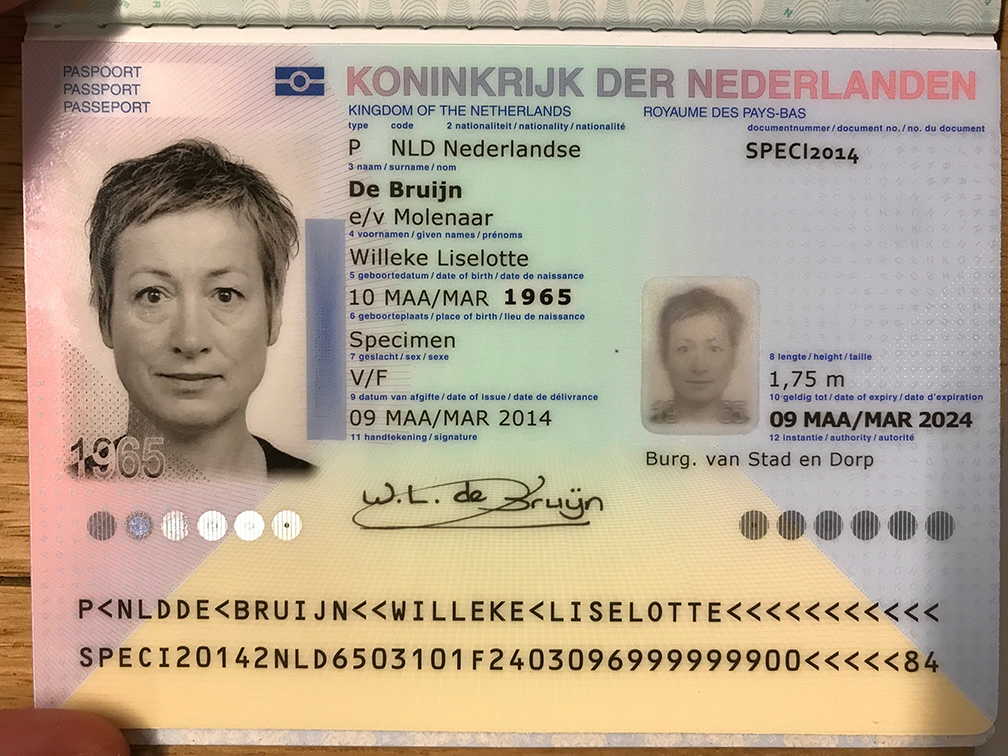
Not OK: Edges and surroundings are less visible
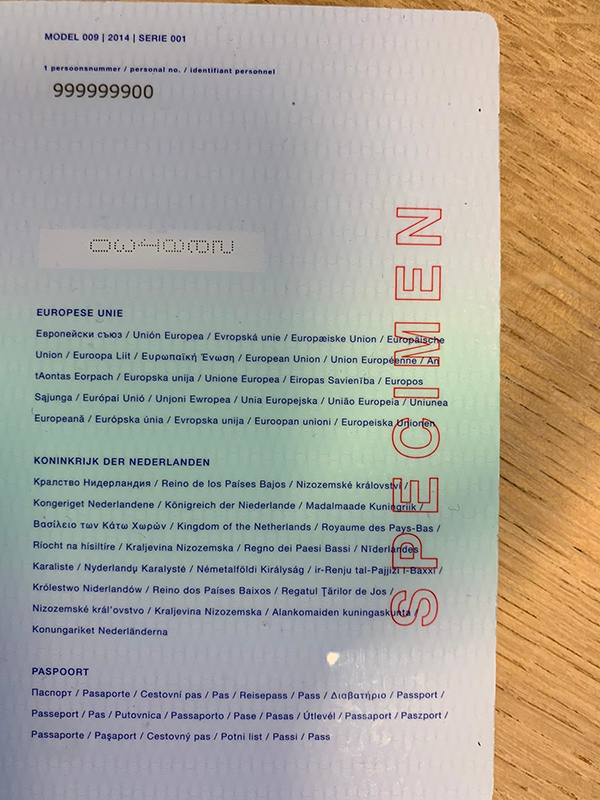
Not OK: Edges and surroundings are less visible